Installation and Usage Guide
Follow these steps to complete installation and start protecting your children in just a few minutes
Step 1: Install Extension
Download and install AI Parental Control from the App Store
Click Free Trial to go to the App Store, download and install AI Parental Control. Installation usually takes only a few seconds.
Step 2: Select Filter Categories
Choose the content categories to block based on your child's age and needs
Open the AI Parental Control app and select the content categories to block based on your child's age, including:
- Pornography
- Violence & Gore
- Gambling Sites
- Drug Information
- Hate Speech
- Racial Discrimination
- Video Games
- Custom Rules (using natural language descriptions)
Step 3: Enable Extension in Safari
Follow these steps to enable and authorize the extension in Safari browser
Click the Safari browser extension icon button
In Safari browser, click the extension icon button on the left side of the address bar

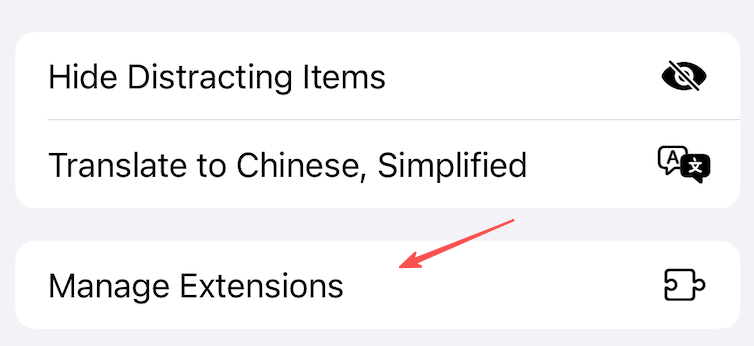
Click Manage Extensions option
In the popup menu, select the "Manage Extensions" option
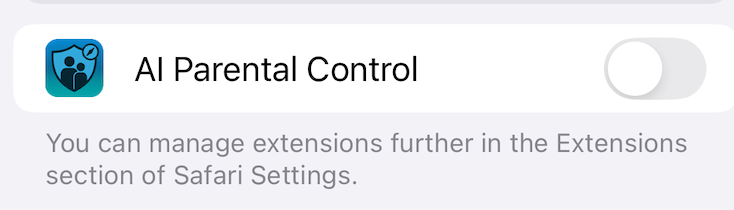
Enable AI Parental Control and click Done
In the extension management interface, find AI Parental Control and enable it, then click Done
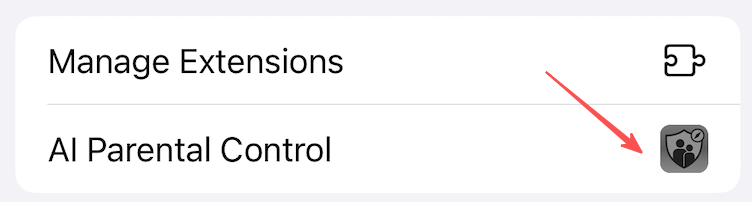
Click AI Parental Control icon to authorize
In the extension list, click the AI Parental Control icon to enter authorization settings
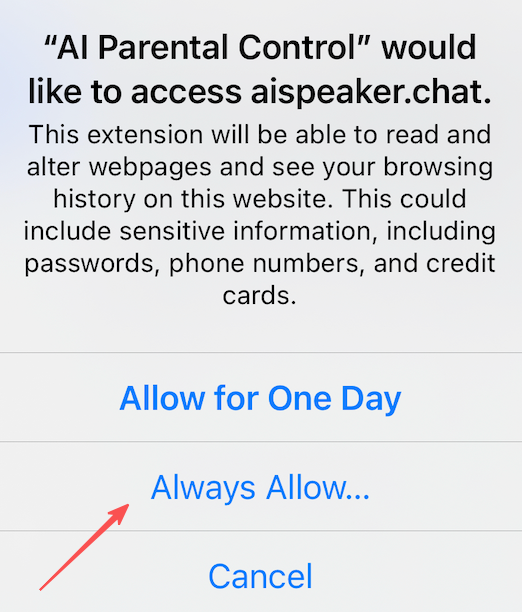
Click "Always Allow..." to authorize the extension
In the permission request dialog, select the "Always Allow..." option
Select "Always Allow on Every Website"
In the confirmation dialog, select "Always Allow on Every Website" to allow the extension to run on all websites

Installation Complete!
AI Parental Control is now protecting your children. The extension runs automatically in the background, filtering all inappropriate content.